Loop 3.12.0 was released on 24 February 2026
These exciting updates:
- Improved Live Activity Display
- Added support for real-time response for remote commands when using LoopFollow
- Removed support for the remote window customization, which expanded the One-Time Password window to 15-minutes
-
Please try LoopFollow if you needed that customization with LoopCaregiver
-
Mac-Xcode Builders should follow the detailed instructions in LoopDocs; new Browser Builders should follow these detailed instructions in LoopDocs. If you need to update your Browser Build, there are some one-time build steps that are required when you migrate from Loop 3.6.x, from 3.8.x to Loop 3.10, and from Loop 3.10 to 3.12:
- ENABLE_NUKE_CERTS (if you haven’t already added this variable)
- May need to modify Customizations
- Build (and Enable Build Workflow, if required)
ENABLE_NUKE_CERTS
In order to utilize the new automatic certificate renewal feature that was added to Loop 3.6.0 and higher, you’ll need to add a new Variable. Variables are located in GitHub, in the same location as your Secrets. The exact location will depend upon whether you build using a GitHub organization or a personal account.
If you use a personal account, click on your LoopWorkspace repository. If you have other repositories, just follow these same steps for each of them. The automatic certificate renewal is available for LoopFollow, LoopCaregiver and Trio too.
If you build using a GitHub organization and have already added this variable for Trio, LoopFollow or LoopCaregiver, there’s nothing for you to do. Otherwise, click on your organization name.
- Choose settings
- Scroll down to select Secret and variables
- Choose Actions
- Choose Variable
- Tap on “Create new organization variable” or “Create new repository variable”
- Add the variaable ENABLE_NUKE_CERTS
- Add the value true
- Add Variable.


Modify Customizations
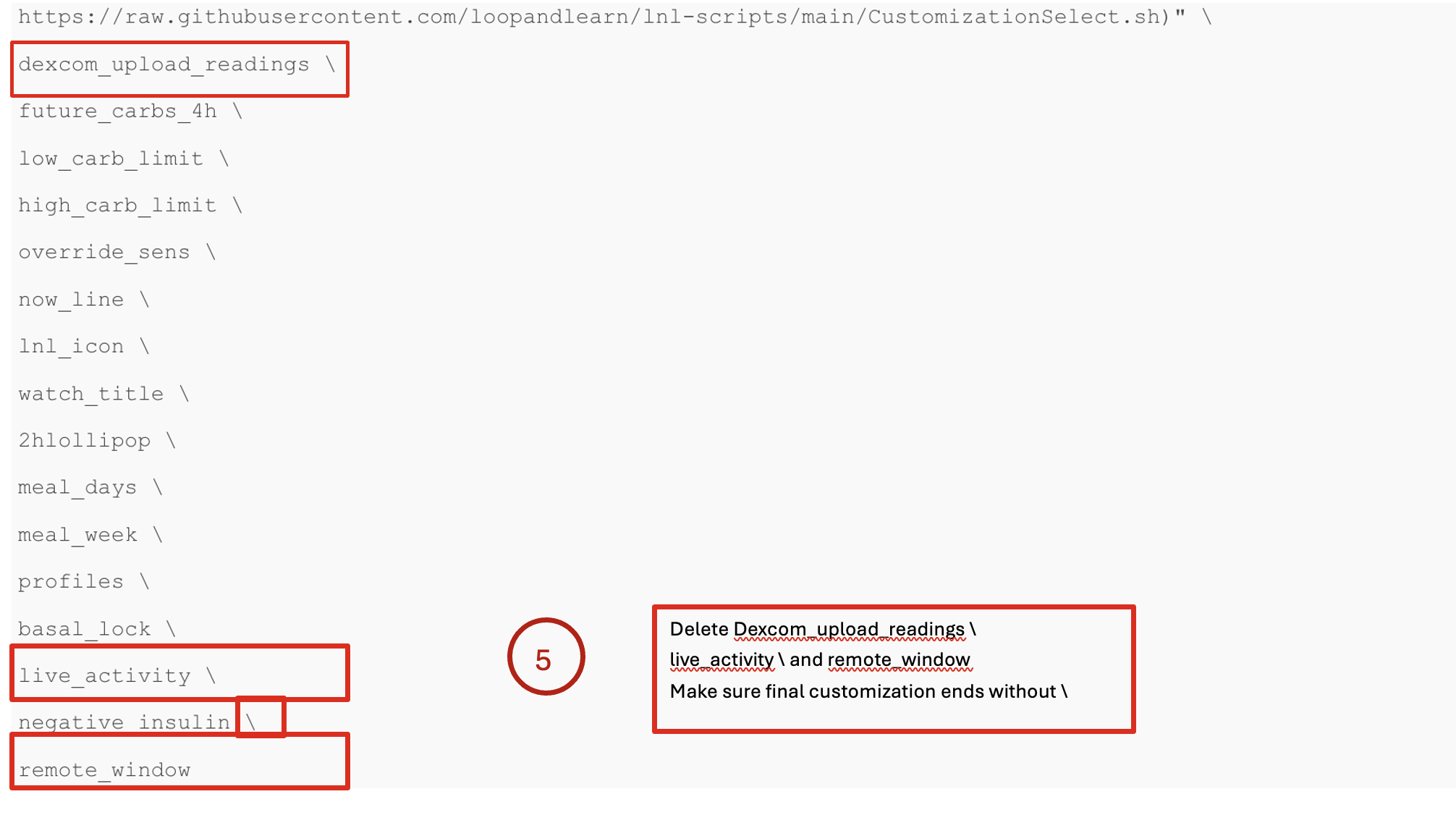
Applies only to Browser Builders who have customized with: dexcom_upload_readings, live_activity and remote_window.
Find your LoopWorkspace repository in GitHub
- The URL you see should be similar to the one below (for your username)
https://github.com/username/LoopWorkspace/blob/main/.github/workflows/build_loop.yml
- Click Code.
- Choose github/workflows.
- Choose build_loop.yml
- Click the pencil icon.
- Scroll to your customizations
- Locate your customizations around line 219
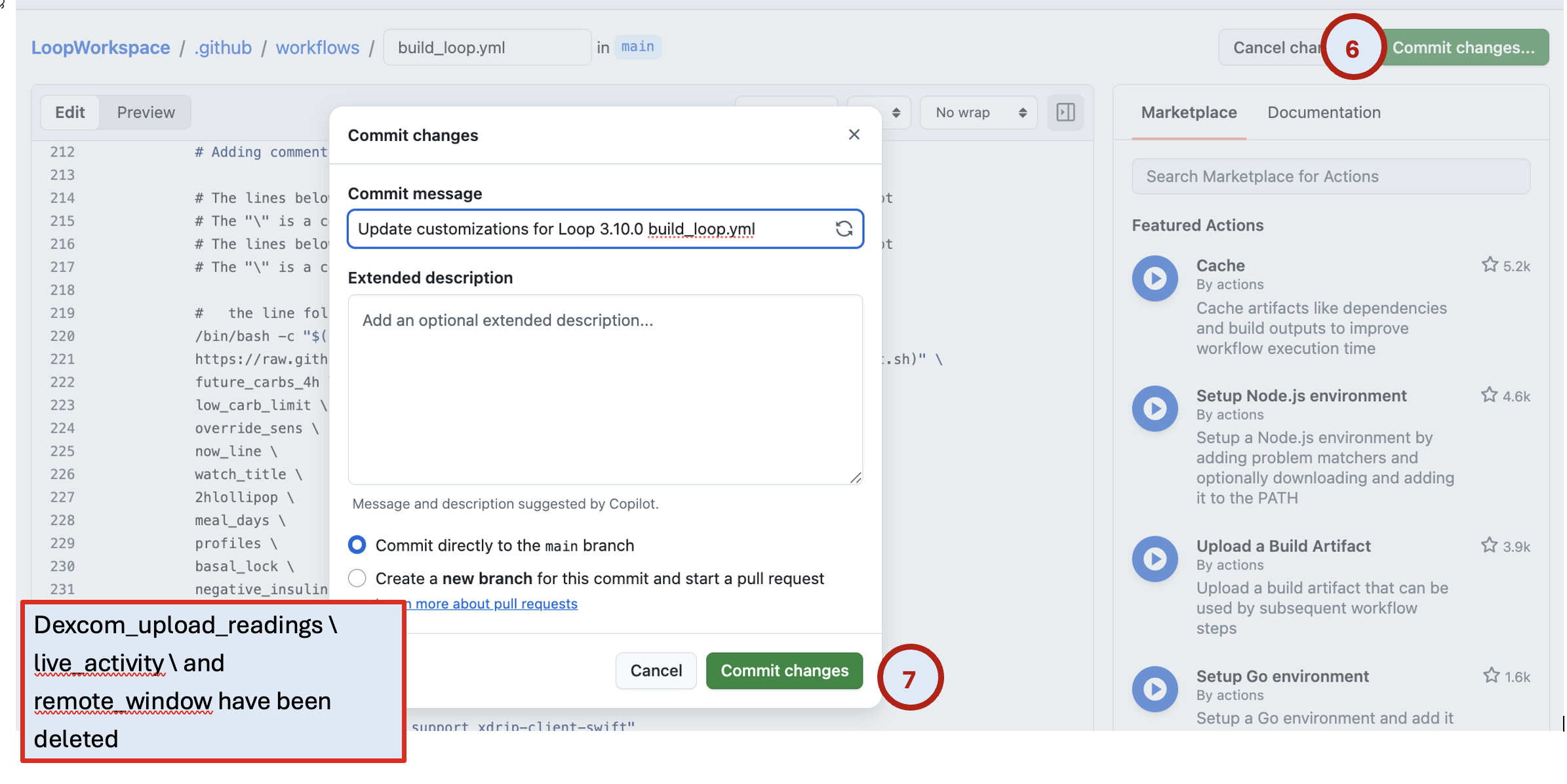
- Delete these customizations (they’ve been added to Loop 3.12, so the customizations are no longer necessary):
- dexcom_upload_readings. (included in Loop 3.10)
- live_activity (included in Loop 3.10)
- remote_window (included in Loop 3.12)
- Make sure that your final customization does not end with
- Detailed instructions to edit customizations can be found here
- Commit Changes.
- Commit directly to your branch.


Build
- Go to
https://github.com/username/repository_name/actions
Copy and paste the link above into your browser tab’s URL, but substitute your GitHub username for username and your repository name for repository_name, (for example, LoopWorkspace, LoopFollow, LoopCaregiver or Trio).
- Build (see Steps 2-5 in image below)
- If your Build workflow is disabled, you will see the Disabled notation below and will need to enable the workflow.
- If your Build workflow is not disabled, you will not see step 3.

Need Help?
Please don’t struggle. Don’t delete your repositories, variable, or anything else. Post on Facebook with your GitHub username or organization and someone will help you troubleshoot.